
Manual Setup for Windows XP
Required Info:
Dialup Number = 0845 6621309
Username = scottish -- Password = internet
Begin by clicking on the Start button in the bottom left side of your desktop. Then move the mouse over to Control Panel and click.
This will open the Control Panel window. This is where you make most changes on your system. The next step for setting up your DSL is to click on the Network icon.
Double click on the Icon labelled Network Connections. This will bring up the window you see below.
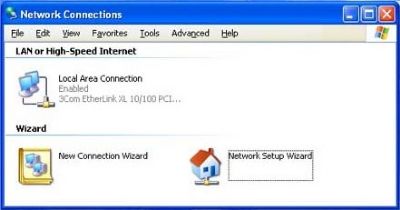
Double click on the icon labelled New Connection Wizard. This will walk you through setting up a dial-up connection to Speakeasy. Begin by clicking Next.
You will then see the Network Connection Type window.
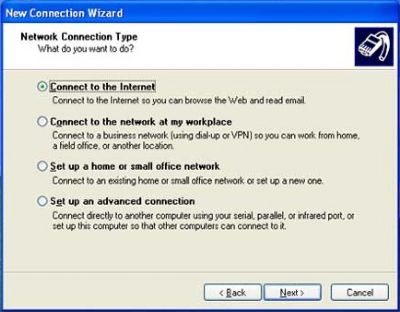
Select Connect to the Internet. Click Next to continue.
This will take us to the Getting Ready window. You will see three choices there. Please select the one labelled Set up my connection manually and then click Next.
The next window (seen below) is labelled Internet Connection.
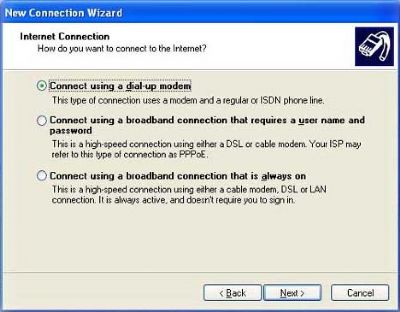
You will want to select the first option, Connect using a dial-up modem. Then click Next to continue.
This window is called Connection Name. Just type in the service name (Scottish Internet) and click Next.
Now we should be in the Phone Number to Dial screen. Just type in 0845 6621309 then, click Next.
Next is the Internet Account Information screen.
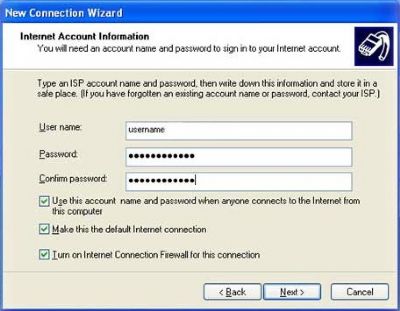
In this screen you will be adding in the Username as scottish and Password as internet and make sure that the top two boxes below that are checked. Then click Next.
This should be the last window, labelled Completing the New Connection Wizard. In this window all you need to do is review what it says and the check the box labelled Add a shortcut to this connection to my desktop.
Click finish and we are done.
Congratulations! You are ready to use your Dialup. There should now be an Icon on your desktop. Just double click on the Scottish Internet icon to connect. After you are connected, just double click on the Internet Explorer icon on your desktop and you will be on the web.
